
Users using Google Photos for a extended time, they might have collected dark blurry images and screenshots that are no longer important. You need to keep your Google Photos library neat, so we advise you to frequently delete blurry photos and screenshots.
Since an additional benefit, deleting these photos and screenshots will also increase the valuable storage space on your Google Account. If you do not have enough storage space in your Google Account, this is the best reason to delete smart photos and screenshots.
Fortunately, you don’t have to browse the entire Google Photos library to get blurry images and screenshots. Google Photos has a great tool for you. It will also show the quantity of storage space you have accumulated by deleting all the blurry images and screenshots you need.
Also Read: How To Recover Photos If Deleted From Smartphone
You can remove blurry photos and old Google Photos screenshots from your phone or PC.
Google Photos by now provides the function of saving screenshots and old photos; however it is different from deleting. Archiving will not only delete them from your photo library, but blurry photos and screenshots will also appear in your Google Account.
How to Delete Blurry Photos in Google Photos From Your Phone
- Launch the Google Photos app on your iPhone or Android device, click your profile picture in the upper right corner, and then click Account storage.
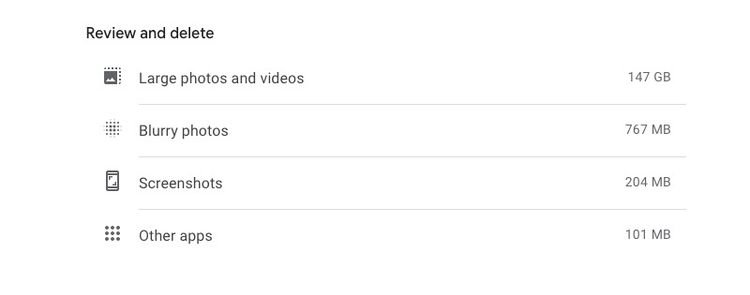
- You will now receive a review of the remaining storage space in your Google account, an estimate, and a review and deletion of the remaining time, depending on your usage.
- Under this section, they will look at the blur image option with storage space occupied by them.
- Click on a blurry photo and it will show you all the images you think are blurry in the Google Photos library.
- Continue to select the blurred photos to delete
- After selecting all the photos you want to delete, click the trash can icon in the upper right corner. Make sure to press “Move to bin” again to select from the pop-up dialog.
Delete old screenshots from Google Photos on your phone
- Open the Google Photos app on your iPhone or Android. Click the data icon in the upper right corner next to “account storage.”
- In the “Review and delete” section, scroll down to “Screenshots.”
- Select the screenshot you want to delete. To delete all screenshots, click the selection table in the upper right corner next to “Select All”.
- After selecting all the photos you want to delete, click the move to bin in the upper right corner. In the pop-up dialog box, click Return to bin to confirm your choice.
If you want to download photos offline for backup before deleting them from your library, Google Photos will provide you with the option to download all obscure photos and screenshots.