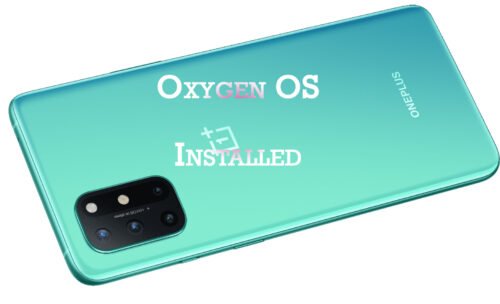
People purchased OnePlus 8T from T-Mobile now can get their device soaked in OxygenOS firmware. For longer time the device haven’t received any of the latest firmware as the carrier is slow in update. If you agree then it’s time to update your T-Mobile OnePlus 8T with International OxygenOS firmware without unlocking the bootloader.
Question may arise why to get the non carrier firmware. Actually installing the update will provide better and faster OTA. Also the dual SIM functionality gets enabled if you purchase a new SIM tray. Any how you access the latest open beta version of Oxygen Os. Well, all these are possible on model number KB2007 only of T-Mobile OnePlus 8T.
OnePlus 8T is a 6.55 inch phone with AMOLED display. The device is equipped with Qualcomm Snapdragon 865 processor which optimize the performance, photography and gaming in less time. It is a nextgen gaming device with silky smooth visuals. Enjoy all the activity when charged 4500 mAh battery for 15 minutes.
Thanks to xda developer for bringing up the method to update the device. There is no issue found after flashing. The 5G, dual SIM, AOD, Fingerprint sensor and Wildvine L1 are working fantastic. You can also get the local upgrade and if followed the steps properly then no hamper happens to About screen.
How to install international firmware on the T-Mobile OnePlus 8T
Pre –requisites
- T-mobile OnePlus 8T
- Windows PC
- You must have network with 4G connectivity on your PC or laptop what you are using to download files from here
- Original USB cable must be used or else the device will not get detected
- Battery power must be roughly 40% or more to stay away from automatic shut down
- Back up all the personal data present in phone through backup apps
- Check the model number before updating it
Procedure to update OnePlus 8T T-mobile
- First download the modded MsmDownloadTool into your PC
- Then run MsmDownloadTool V4.0.exe file. If you are using windows 7 then run the same version of the tool
- After that select Other as user type and then press next
- Do not hand on the default setting , just keep it the same way, rather press Start
- Put the OnePlus 8T in EDL mode using the ADB command
Adb reboot edl
6. Now completely switch off the phone and hold the volume up and volume down button and connect the device to your pc with the help of original USB cable.
Wait for the flashing process to get finished.