When you sit down and looking at the phone and leave it for a while, It would be very bad if the person sitting next to you read the massages at the very moment when the notification arrives. To stay away from all this Google has built up a feature in your phone called sensitive notification hiding on Android.
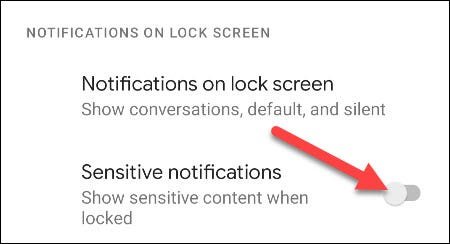
Android allows hiding “sensitive content” from notifications on your lock screen. The notification will still be visible, but its contents will be hidden. What are to be categories as sensitive notification is completely on an app developers, so it may vary.
Also Read: How To Turn Off Annoying Facebook Notifications On Your Android
There are several apps that deliver smarter notification for android devices. You make get the help of Snowball app that organizes the important notification in one place. The app hides annoying notifications with single swipe. There are certain apps that provide mini heads up notifications when you are in full screen mode. This is done in Floatify app and works with major messenger apps. Echo is another app displays the entire notifications rather than just titles on lock screen. Another flashing notification app uses its blinking light feature to alert about incoming calls and notifications.
Well, the lock screen of your phone or tablet stops people from accessing your device, but there is still information that can be flashed on the display itself. Luckily, Android makes it simple to hide from viewing the notification on your lock screen. Here follow the simple steps to do it so.
- First swipe down from the top of your device screen and tap on settings icon in notification panel or directly go to setting section of your phone.
- Then select Apps and Notifications
- Then choose the Notification
- After that scroll down to Notification on Lock screen section where select Notification on Lock Screen
- If you don’t want to show any of the Notification then tap don’t Show Any Notifications. Or else tap on Hide Silent Conversations and Notifications.
- For less aggressive solutions, switch to off the “sensitive Notification” option
That’s all! Control over phone is not achieved with turning ON this sensitive notification. This feature will work for few apps, basically it’s totally upto the apps where this Sensitive option will work.